Data-for-ArcGIS
Step Two: Adding new data to the mapping spreadsheet
Review example data
Add new data
** instructions for adding coordinates provided in the next step ** Consider these elements when adding mapping data:
- You choose what places to map based on your close reading of the text
- Avoid mapping the same place multiple times, as points on the map will cluster and be difficult to click
- Provide a description of the point being mapped in Spanish, in the “Context esp” column
- Utilize the provided drop down menu choices for these columns: “Exactness”, “Real or Fictional”, “Category”, and “Structure Type”. Hover over the column for more information about those choices:
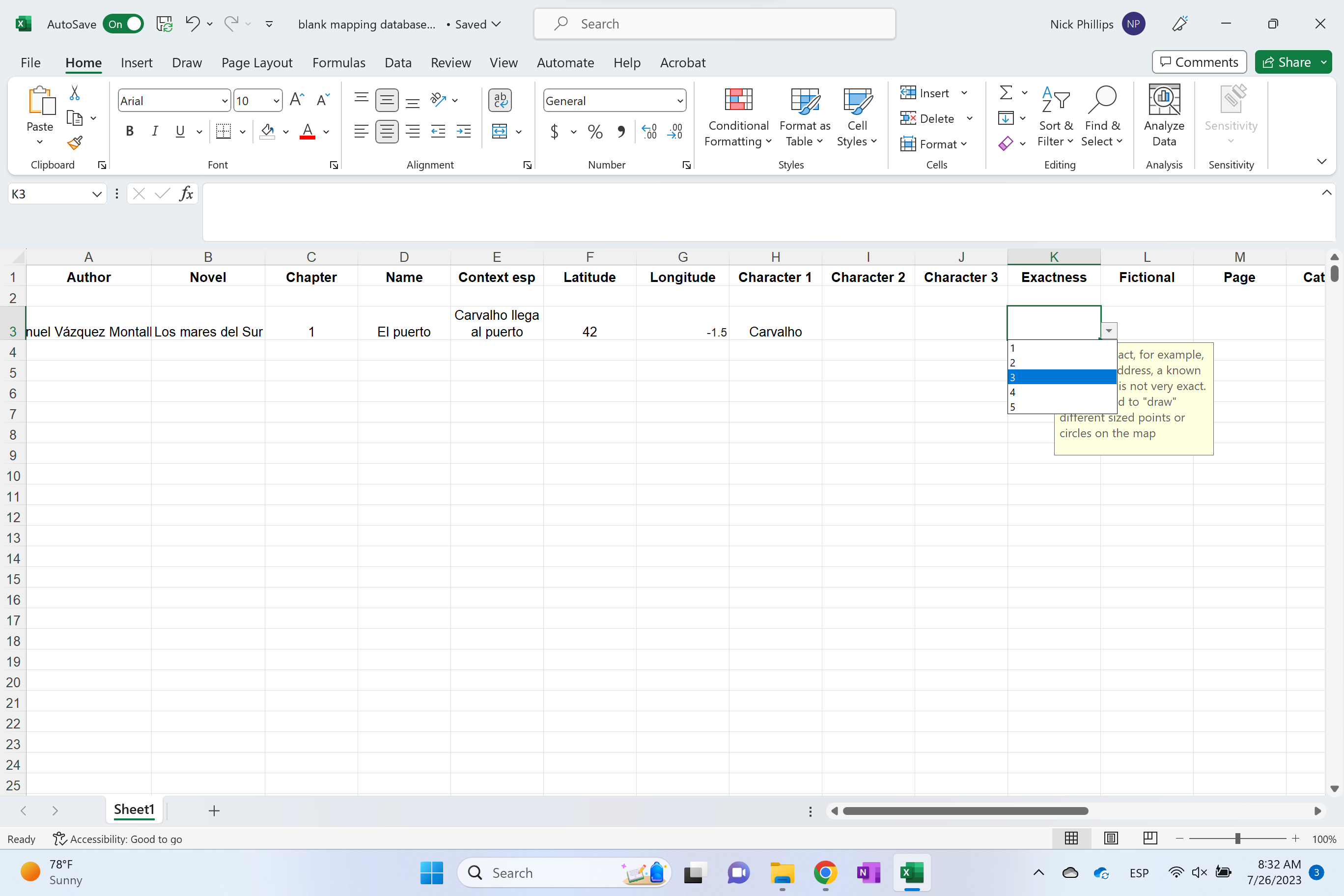
Drop down menu items
- Exactness: 1 is most exact, 5 is least exact. Think of how large or small your point should be on the map based on how certain you are of the exact spot of the location.
- Real or Fictional: Your subjective analysis of whether or not the point is real (based on a real location) or fictional. Points that are “inspired” by real locations, but have different names or characteristics, should be labeled as fictional.
| < previous | next > |